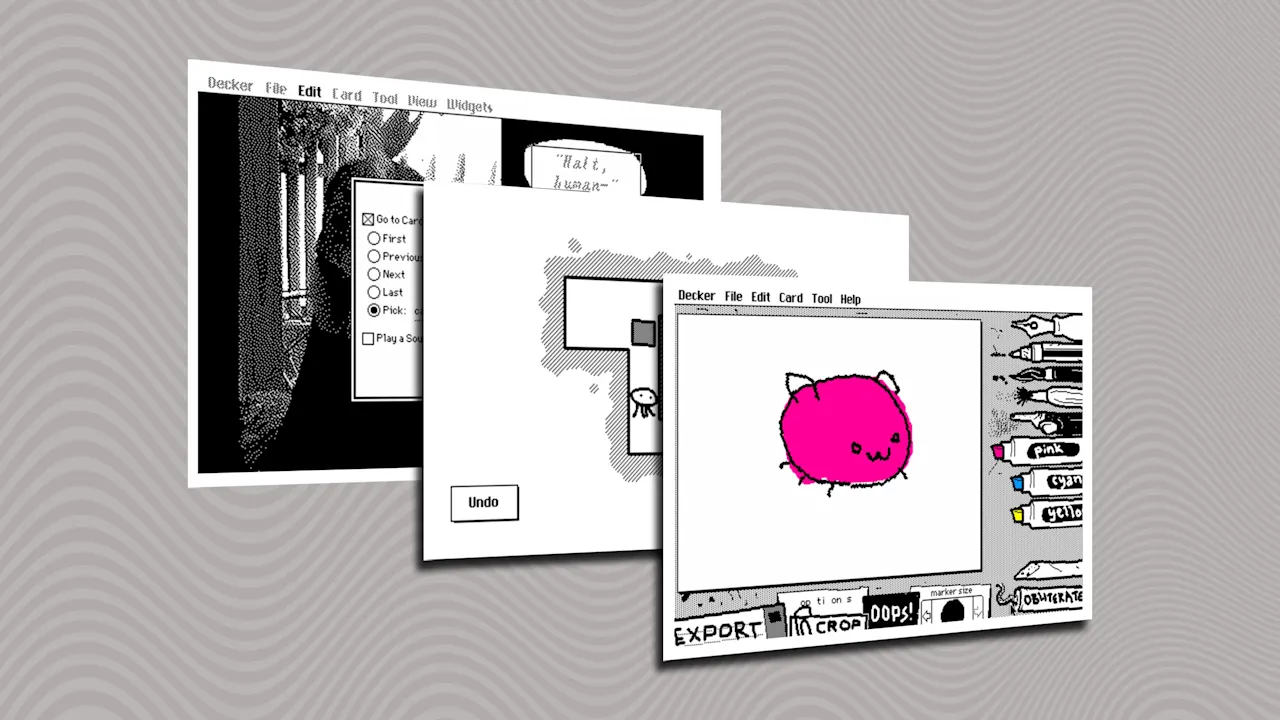
Decades ago, when a classmate and I were supposed to be learning Photoshop in our high school computer lab, we stumbled upon something much cooler—and weirder.
The program was called HyperCard, from Apple, and it let you create interactive presentations with multiple choice buttons and branching pathways. We quickly started using it to craft crude choose-your-own adventure games when the teacher wasn’t looking.
HyperCard could have become something bigger if Apple hadn’t abandoned it, which is a whole other story. The point of this article, though, is to let you know about a spiritual successor that enables all kinds of modern uses despite its old-school aesthetic—on whatever kind of device you’re using.
This tip originally appeared in the free Cool Tools newsletter from The Intelligence. Get the next issue in your inbox and get ready to discover all sorts of awesome tech treasures!
Interactive documents, retro-style
To bring back the glory of HyperCard on modern devices, check out Decker.
➜ Decker is a desktop app for creating interactive documents, presentations, and games.
⌚ It takes five or 10 minutes to learn the basics well enough to start putting a presentation together.
💸 And it’s available for free or under a pay-what-you-can model. You can also try a web-based version without installing anything.
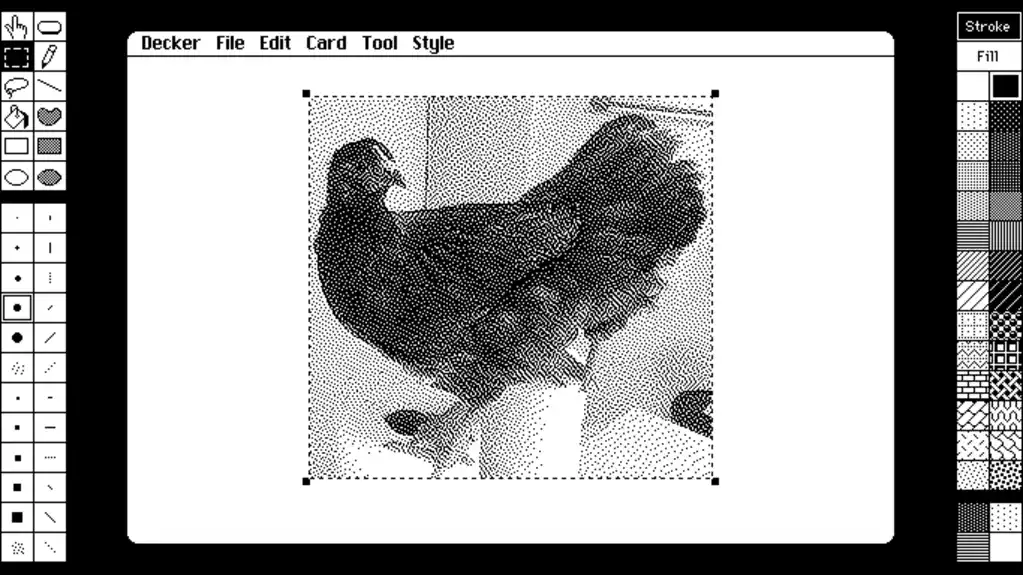
✅ Let’s start with the download first:
- Head to the official Decker download page, then scroll down and click the “Download Now” button.
- You’ll see a few payment options if you want to support the developer, or you can click “No thanks, just take me to the downloads” instead.
- Then choose either the “mac” or “win” version to download (or, again: If you’re using a phone or another type of device, head over to the web version instead).
- In Windows, you can extract the ZIP file to any folder you like and run the decker.exe file, as it’s a portable app with no need to install anything.
- For the Mac version, extract the ZIP file and move the Decker.app file to your Applications folder.
☝️ Decker is safe to use, gets regular updates, and has an active community of users—but because the app isn’t notarized, it runs afoul of the Windows and Mac safety filters. In Windows, hit “Run Anyway” when prompted. For the Mac version, head to System Settings > Privacy & Security, then select “Open Anyway” next to the message about Decker being blocked. You’ll only have to do this once.
🖌️ With all that out of the way, you can start making things. While the app has a “Guided Tour” that demonstrates its main features, I suggest doing the following:
- Head to File > New Deck and hit “Discard” for a clean slate.
- Under the “Tool” tab, select “Widgets.”
- Under the “Widgets” tab, select “New Button.”
- Double-click the button, and write something in the Text field, like “Next Page.”
- Click the “Action…” button, select “Next,” then hit “OK.”
- Head to File > New Card.
- Under the Widgets tab, create a new button again, set the Text to something like “Previous Page,” then hit the “Action…” button and select “Previous.”
- Head to Tool > Interact, so the buttons become clickable.
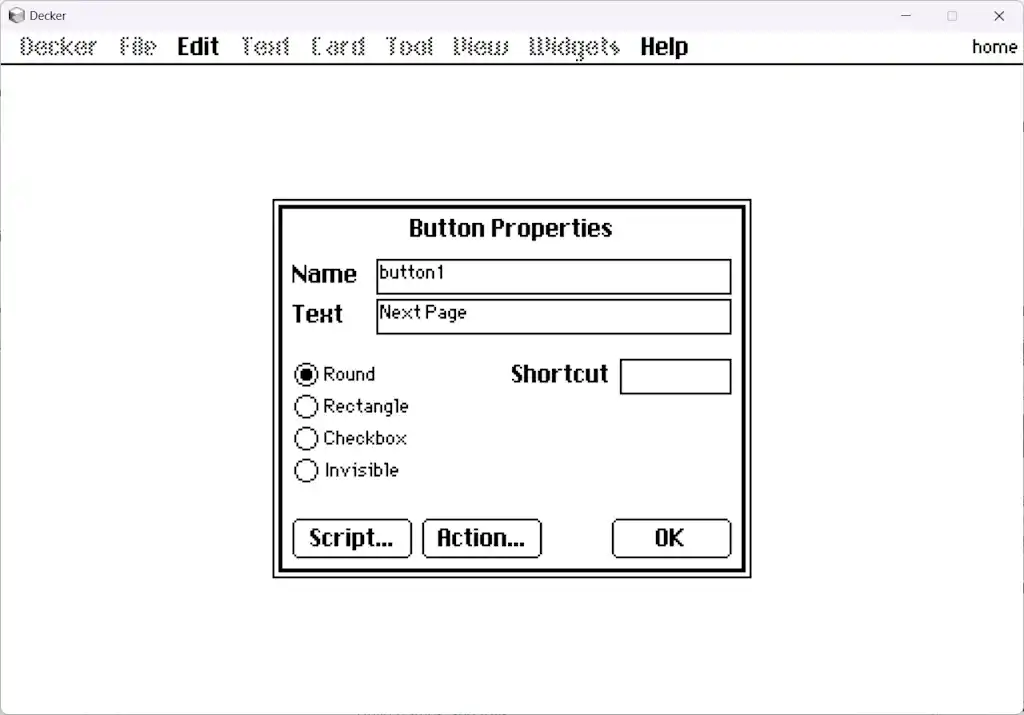
Now, you should have two pages, each with a button for flipping back and forth between them. This is the essence of Decker: creating documents with interactive buttons for jumping around to different pages.
💡 From there, you can try some different things to dress up your pages:
- In the Tool tab, use the various drawing tools such as Line, Pencil, and Box.
- Make another button, but this time set it to “Invisible” and draw your own custom button art around it.
- Try adding some other types of objects from the Widgets menu, such as text fields, sliders, and canvases to draw on.
Decker also includes its own scripting language called “Lil,” which can add even more layers of interactivity to your documents. For instance, you can have a button that adds to a counter, which then loads another card when the counter exceeds a certain level. It’s even possible to create entire games in Decker this way.
If you want to dive deeper into Decker’s capabilities, I suggest loading some of the files in the “Examples” folder or on the Decker website. Like any other Decker document, you can edit these examples to see how they work.
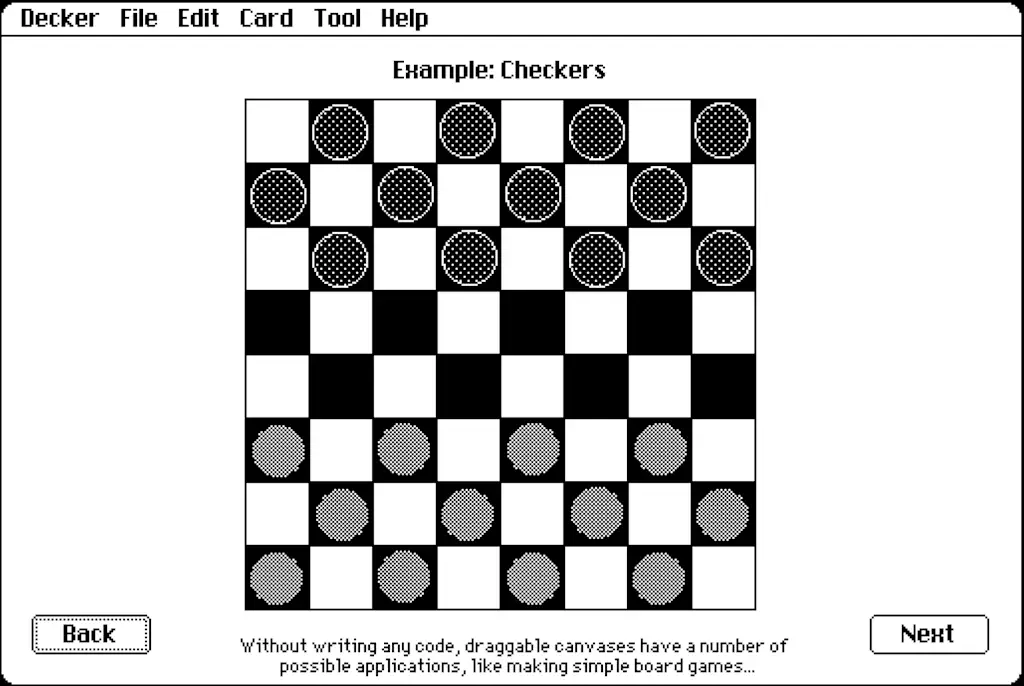
Once you’ve finished making a document, head to File > Save As to export it. The default file format is .deck, but you can also change the extension to .html, which lets you load the document in any web browser. Yes, that means you can make any document public by uploading the .html file to your personal website, if you have one.
Much like the original HyperCard, it’s surprising how much you can do with this little program. Who knows? You might even end up building the next Myst.
- Decker is available for Windows and Mac, and you can try it online, too.
- The app is free to download with an optional donation.
- Decker is open-source software, does not require an internet connection, and does not collect any user data.
Treat yourself to all sorts of brain-boosting goodies like this with the free Cool Tools newsletter—starting with an instant introduction to an incredible audio app that’ll tune up your days in truly delightful ways.