Do you always feel like somebody’s watching you?
You probably know your mapping app needs your location to give you directions. But your iPhone may be letting dozens of other apps ping your exact GPS coordinates in the background, draining your battery and quietly building a profile of everywhere you go.
Retail apps want to know when you walk into their competitors’ stores. Weather widgets constantly refresh your coordinates on your home screen even when you haven’t tapped them in a week. All of this silent radio activity burns through your battery before dinner time.
You don’t have to put your iPhone in airplane mode to stop it. You just need to shut down the unnecessary trackers hiding deep inside your system settings.
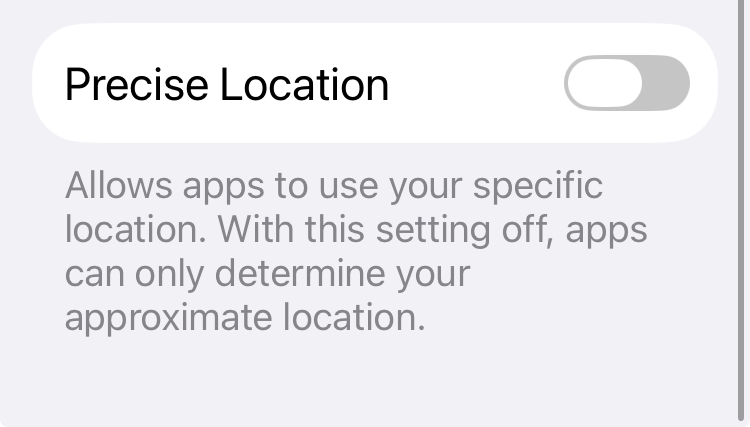
Kill precise location for apps that don’t need it
Your weather app needs to know what city you’re in, but it doesn’t need to know what side of the street you’re standing on.
Go to Settings > Privacy & Security > Location Services. Scroll through your apps and look for anything that isn’t a map or ride-sharing service. Tap each app and toggle off Precise Location at the bottom of the screen.
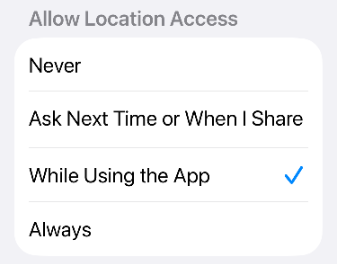
Restrict access to ‘While Using’
While you’re in that same menu, make sure no app is set to Always. Change every app’s permission to While Using the App.
This ensures a fast-food app or social media network can’t track your morning commute while your iPhone is locked in your pocket.
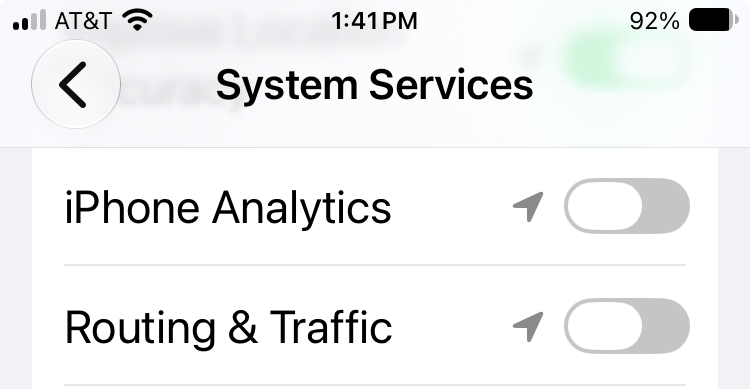
Shut down hidden Apple system services
This is where the real battery drains hide. Scroll to the very bottom of the Location Services menu and tap System Services.
You’ll see a massive list of internal trackers. You can safely turn off Location-Based Apple Ads, Routing & Traffic, and iPhone Analytics.
Your iPhone will still work perfectly, but it won’t constantly log your daily routine to send back to Cupertino.
Delete your ‘Significant Locations’ history
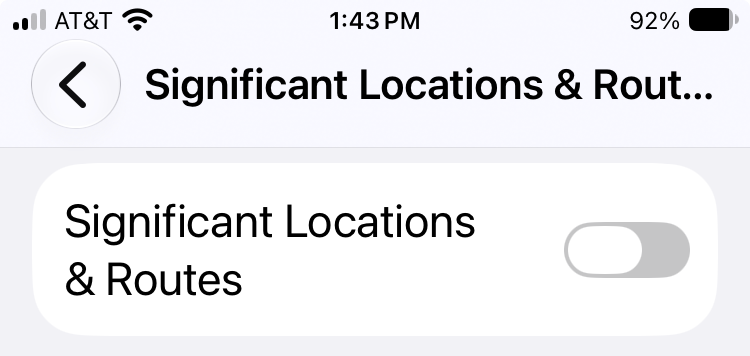
Inside that same System Services menu, look for a tab called Significant Locations. Apple uses this to track the places you visit most often to provide predictive traffic routing.
If you authenticate and open it, you will likely see a deeply detailed, borderline creepy map of your daily life. Tap Clear History at the bottom, then toggle the feature completely off at the top.
Turn off background app refresh
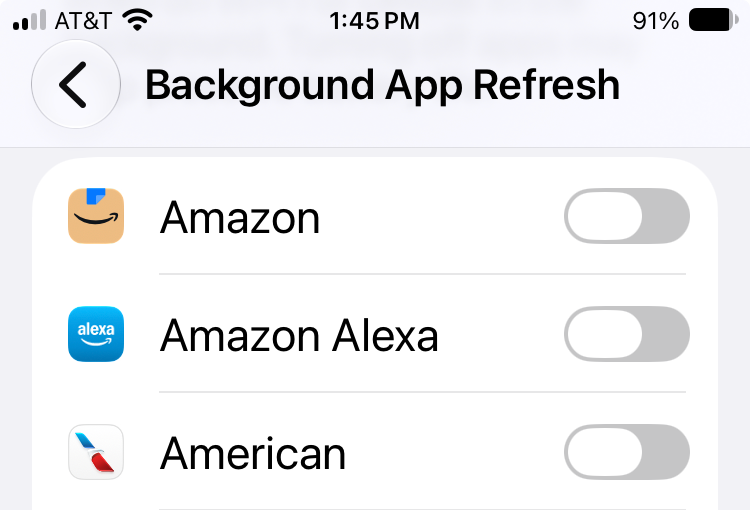
Apps love to use your location to download fresh data while you aren’t looking. Go to Settings > General > Background App Refresh.
You don’t need to turn the master switch off completely, but you should absolutely go down the list and toggle it off for social media, retail, and gaming apps that have no business running in the background.